




How to remove the FBI Moneypak virus from an infected machine

Last month we had highlighted the growing threat of a fake FBI notice in the United States which turned out to be a form of ‘Ransomware’. This ransomware was called Moneypak since it demanded a payment of a sum of money through a prepaid Moneypak credit card. In this scenario, the malware locked up a machine and displayed a fake message that claimed to be from the FBI.
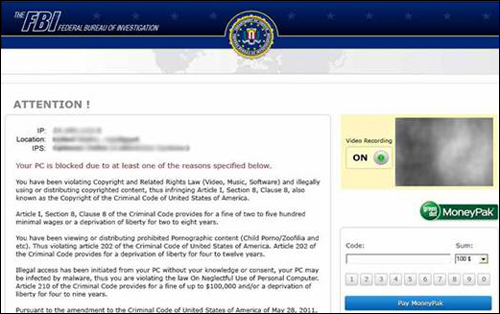
A ransomware is a malicious software that restricts access to a computer until a ransom is paid. The FBI Moneypak (FBI virus, Citadel, Reveton) is a ransomware that locks computer systems, then alleges that the computer user has been involved in illegal activity (downloaded or distributed copyrighted material or viewed child pornography etc.) and demands a penalty of $100 or $200 be paid to unlock the system within the allotted time of 72 hours by use of Moneypak cards. The ransomware also states that the user will face jail time and prosecution by the FBI if the fine is not paid in time. However, this is only malware and these claims are not real.
The potential harm caused
- Makes the performance of a computer slower with limited security and causes various types of system instability situations
- Terminates programs that a computer relies on such as antivirus, antispyware and other types of related security software
- Freezes the entire computer system
- Obtains login names, personal information, passwords and other confidential information without user knowledge or consent
- Discloses personal information
- Encrypts the user’s personal documents and deletes the original files
- Hides files which enable deletion of the malware
- Demands a ransom in clear terms and sends a personal and accusatory message
How to manually remove the malware
STEP 1: Restart your computer
STEP 2: Press F8 immediately after the system restarts and before the Windows screen resumes. You will now see ‘Windows Advanced Boot Options’.
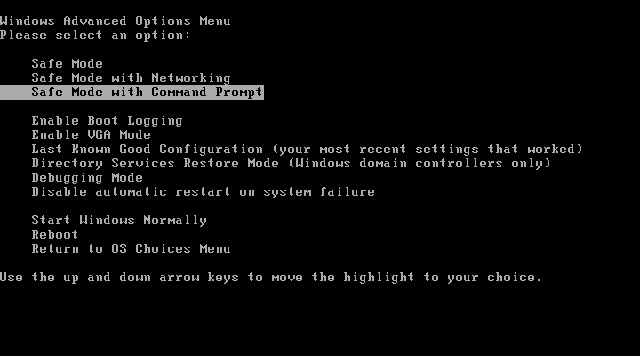
STEP 3: Use the UP arrow key to navigate to “Safe mode with command prompt” and press the Enter key.
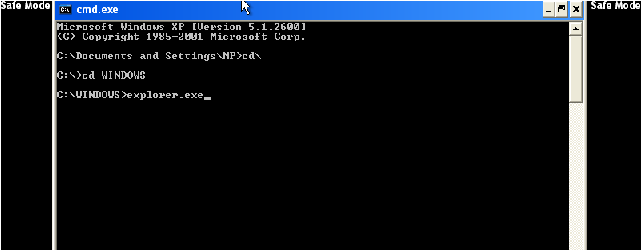
STEP 4: Now type “explorer.exe” in the command prompt window and press the Enter key.
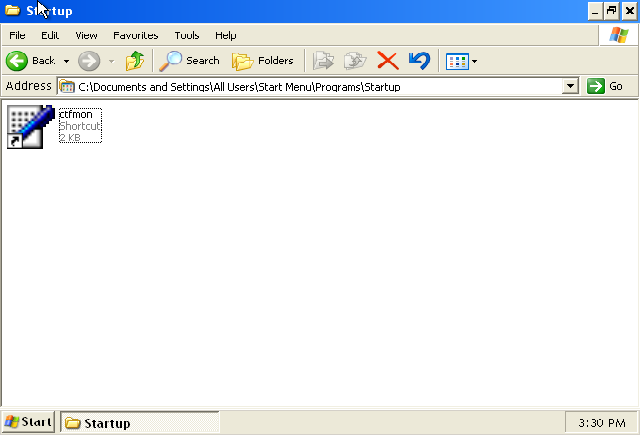
STEP 5: Find the following files in the “Startup” or “Application Data” folder:
- C:Documents and SettingsAllUsersStartMenuProgramsStartupCtfmon.lnk
- C:Documents and SettingsUserApplication Datamsconfig.dat
- C:Documents and SettingsUserApplication Datamsconfig.ini
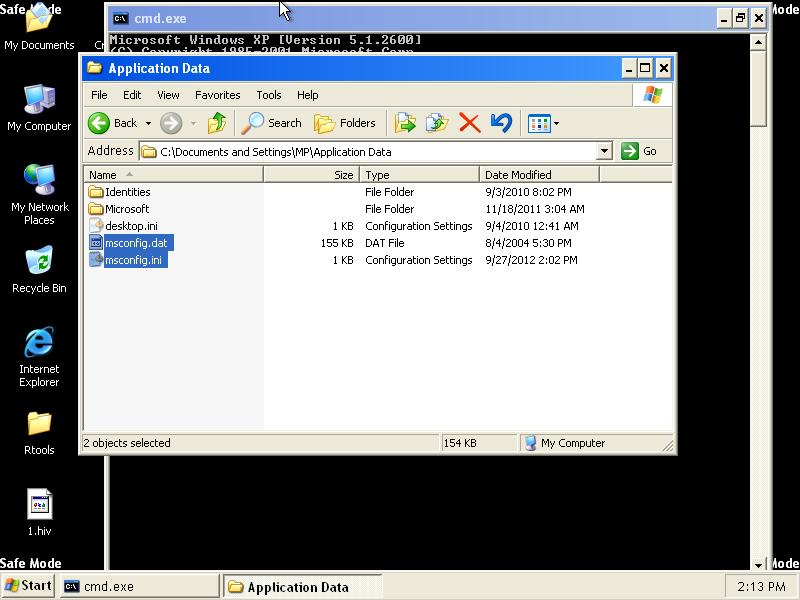
STEP 6: Delete the ‘Ctfmon.lnk’ OR ‘msconfig.dat’ OR ‘msconfig.ini’
STEP 7: Reboot the system again, this time in Normal Mode. After the system restarts run a full system scan to remove any other remaining files.
These steps will help you remove this malware from your machine and protect you from the Moneypak virus. Though this malware has mostly been rampant in the United States there is a chance that it can spread to other geographical locations as well. So it is best to be aware about these steps to ensure complete protection.
UPDATE: If you are using Windows 7 OS you will not be able to locate the ‘Application Data’ folder at the path mentioned above. The alternate method is to open the Windows Run box (press the Windows key + R) and then type appdata. The Application Data folder will now be opened and you can search for the ‘msconfig’ file here.