





How to Block Pop-up Ads

In a couple of our blog posts, many readers have posted a query on how they can block pop-up ads that appear on various websites that they visit. Through this blog post, we have answered the query with a few helpful tips.
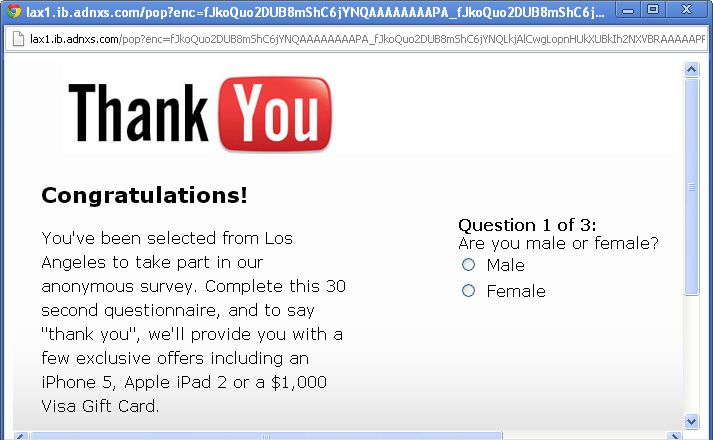
Advertisements have come a long way; from public notices carved on stone to modern day’s online advertisements which include a gamut of channels. One form of online advertisements are pop-up ads that appear automatically on your screen upon visiting certain websites. Often, these pop-up ads display advertisements that are of no interest to the user or relevance to the content the user is viewing. While pop-up ads are used by many legitimate businesses, they are also used by attackers to distribute spyware, adware, and other malware on user’s computers. But malicious or not, Internet pop-up ads can be downright annoying and undesirable. Outlined below are some simple steps you can take to stop pop-up ads from cluttering your computer.
Tips to Block Pop-up Ads
Enable Pop-Up Blockers in all Your Browsers
The first sensible step to take is to turn on pop-up blockers in your Internet browsers. Here’s how you can do it for Mozilla, Chrome, Safari, and IE:
1. Mozilla
– Click Tools >> Options >> Content.
– Check ‘Block Pop-up windows’.
2. Chrome
– Click Settings >> Advanced Settings >> Content Settings.
– Under Pop-ups, select ‘Do not allow any site to show pop-ups (recommended)’.
3. Internet Explorer
– Click Tools >> Options >> Privacy.
– Check the ‘Block pop-ups’ option.
4. Safari
– Click Safari >> Preferences >> Security.
– Select the ‘Block pop-up windows‘ option.
Get Browser Extensions/Add-ons for Blocking Pop-ups
To add an extra layer of protection against annoying and malicious pop-up ads, consider installing an extension or add-on in your browser. You can search for effective pop-up blockers on the Internet, or from the extensions/add-on options in the browsers.
Read Carefully Before you install any Software
In most cases, pop-up ads occur because of adware that is installed on your system without your knowledge. Adware is usually a part of free software available on the Internet. So, before installing any free software, check if you are getting any additional programs with it; for example, a toolbar, a search box, a music player, etc. It is wise not to install such additional programs.
How to Get Rid of Pop-up Ads from your Computer
If you are bugged with frequent pop-up ads and windows appearing on your system, then here are some tips you can follow:
1. Go to the ‘Control Panel’ section of your computer, and uninstall any recently installed or unknown programs.
2. The following are some common examples of Adware programs. Uninstall them if they are present in the list:
a. LyricsSay-1
b. LyricXeeker
c. HD-Plus
d. Browse2Save
e. WebCake 3.00
f. DownloadTerms 1.0
g. LyricsBuddy-1
h. TidyNetwork.com
i. ElectroLyrics-1
j. a2zLyrics-1
h. SimpleLyrics
3. Never try to close a pop-up window by clicking the ‘X’. Doing so might infect your computer with a malware. A safer way is to go to the Task Manager and closing the program from there.
4. Consider reviewing the add-ons/extensions installed in your browsers. If an extension looks unfamiliar to you or is any one of the programs listed above, get it removed from the browser.
5. At times, resetting your browser can also help you get rid of pop-up advertisements:
a. Reset Chrome
b. Reset Firefox
c. Reset IE
d. Reset Safari
Quick Heal Total Security efficiently blocks malicious programs such as adware which happen to be the biggest source of pop-up advertisements. The software also blocks spyware – an adware that collects your personal information without your knowledge. An added layer of protection comes from the Browser Sandbox feature that lets you browse the Internet in a secure environment.