




The Basics of Twitter Security and Why it is Important

When it comes to security and privacy threats over social networks, no platform gets as much negativity as Facebook. While some of the concerns that people have about Facebook privacy are justified, some of them are not. In fact, many of the so called lax privacy concerns are just as prevalent on social networks such as Twitter as well. However, for some reason Twitter does not get classified into the same bracket as Facebook.
One reason for this is that when there are security or privacy concerns, Twitter is extremely quick to respond. Moreover, Twitter does not constantly keep chopping and changing security features with commercial goals in mind. This has usually kept Twitter away from privacy mobs. Nonetheless, this does not mean that Twitter is not vulnerable to data leakage, privacy threats, social engineering and other security concerns. Twitter also functions on ad revenue so there are ways the company monetizes its user data.
With that in mind, here are some common Twitter security tips that all Twitter users should be aware about.
Where to find the security settings on Twitter
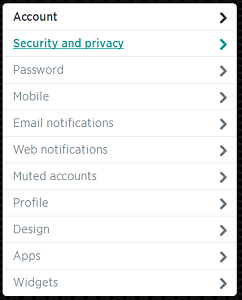
In order to locate the security settings options on Twitter, you need to click on the gear icon in the top-right corner once you log into your Twitter account. Once this is done, you need to click on Settings.

Once this is done, you need to click on Security and Privacy in the column of options on the left side of the page. This will now open up the various options that you can alter for the security of your Twitter account.
Security settings for your Twitter account
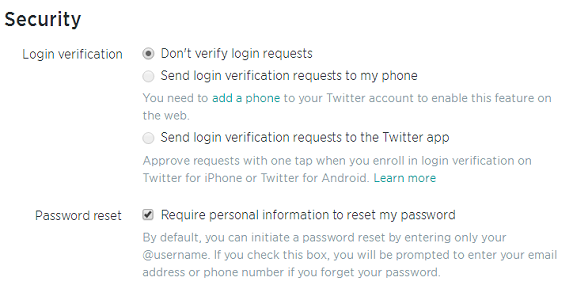
Under the Security section, you will find various options that will allow you to maintain control over your Twitter account. Here are the options that you can control here:
- Login Verification – This feature allows you to enable two-factor authentication when you or someone else accesses your account. This request can be sent directly to your phone, or to the official Twitter app installed on your smartphone. For this to work, you will need to ‘add a phone’ to your Twitter account from the same section.
- Password Reset – This option is useful if you want to make your password resets more secure. If this option is selected, you will need to give your email address or phone number when you request a password reset. It is recommended that you keep both these options checked for the best Twitter security.
Privacy settings for your Twitter account
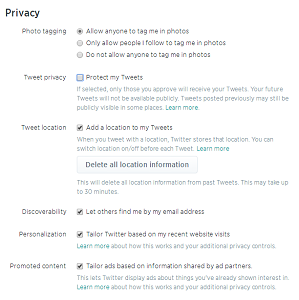
Under this section you can change the other security settings related to your Twitter account. The options that you can manage here are:
- Photo Tagging – Here you can decide who is permitted to tag you in photos. This can be set to anyone, people you follow or nobody.
- Tweet Privacy – With this option you can make your tweets non-public. Only people that you approve will be able to view your tweets.
- Tweet Location – You can choose to enable or disable location information before every tweet you send out, via this option.
- Discoverability – This option allows you to be searchable / non-searchable on Twitter via your email address.
- Personalization – You can also enable your Twitter to be based on your website visits and preferences.
- Promoted Content – If this option is selected, Twitter will show you ads only about things that you have shown interest in.
With the help of these Twitter settings, we hope that you can make your online experience safe and secure. The settings in Twitter are not as in-depth as Facebook’s, and this makes it easier and more reliable as well. Users who spend a lot of time online should also consider using a product such as Quick Heal Total Security. Features such as Web Security and Browser Sandbox will help ensure complete protection against security threats on Twitter and other social networking sites.
For more security tips such as these, follow us on Twitter. Stay tuned!