




6 Easy Steps to Tighten your GMail Security!

We check our Gmail account for personal emails, offers, social media updates, promotions, etc., almost every day. But, reviewing our account’s security setting to ensure that it stays safe against malware and hackers is not something that most of us do. In this post, we will take you through a ‘Gmail security checkup exercise’ that will help you make your Gmail account more secure.
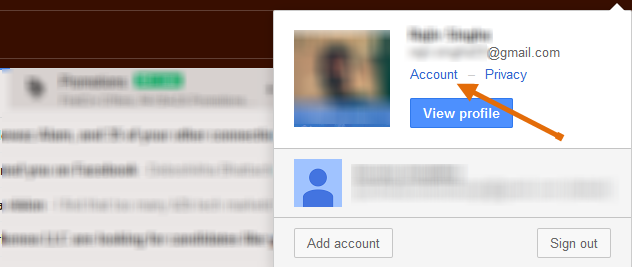
1. Login to Gmail >> Go to Account
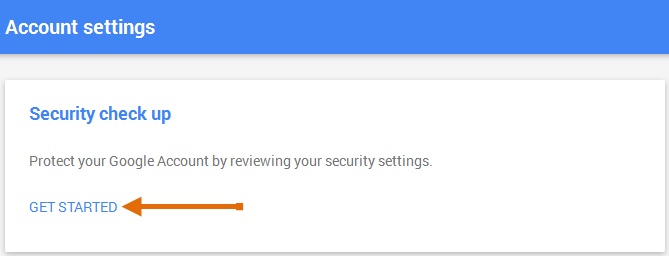
2. Click Get Started
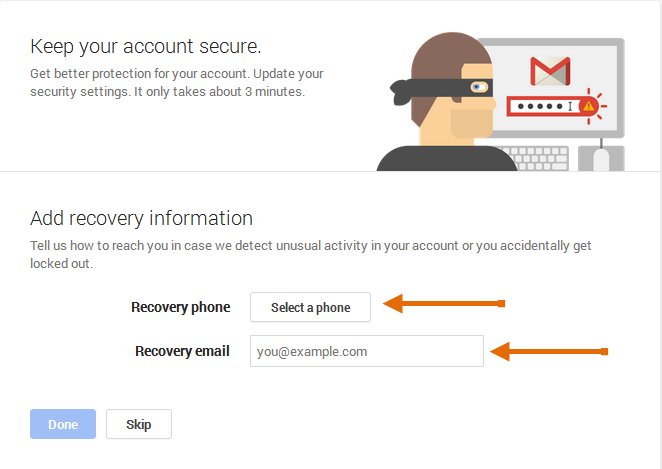
3. Under Add Recovery Information add your phone number and alternate email address. These will help Google reach you if any unusual activity is detected on your account.
4. Click Done, and move to Check your recent activity section.
Here, you can check how many times your Gmail/Google account has been logged into using browsers and apps.
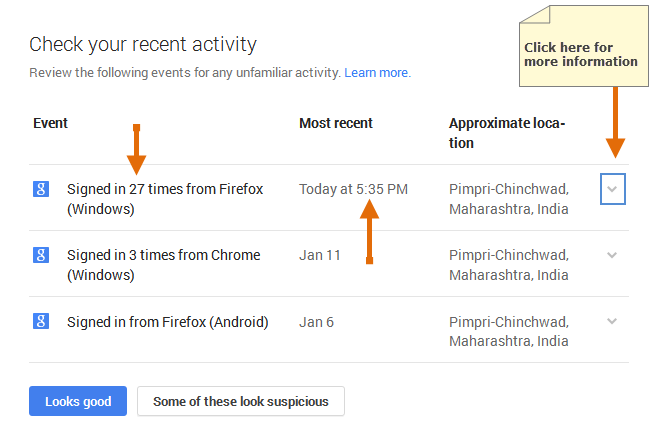
Tip – Your account’s recent activity is also displayed at the bottom right corner of every page when you are logged into Gmail.
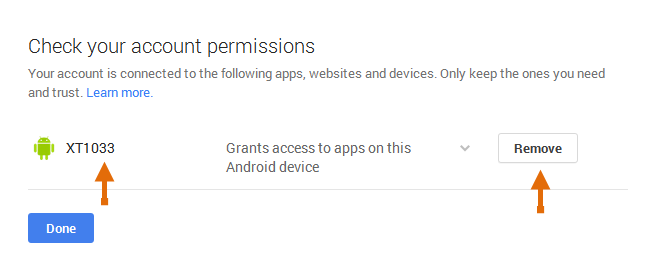
5. If everything looks good, move to the next check point called Check your Account Permissions.
Here, you can review apps, websites, and devices that are connected to your account. If you see anything unfamiliar, click Remove against the entry.
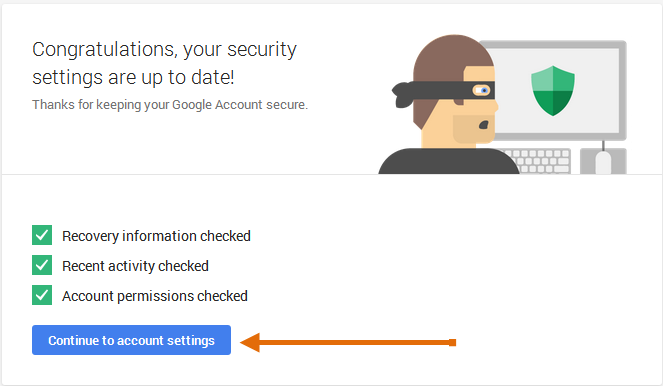
6. Once you are done with the Security Checkup, click Continue to account settings.
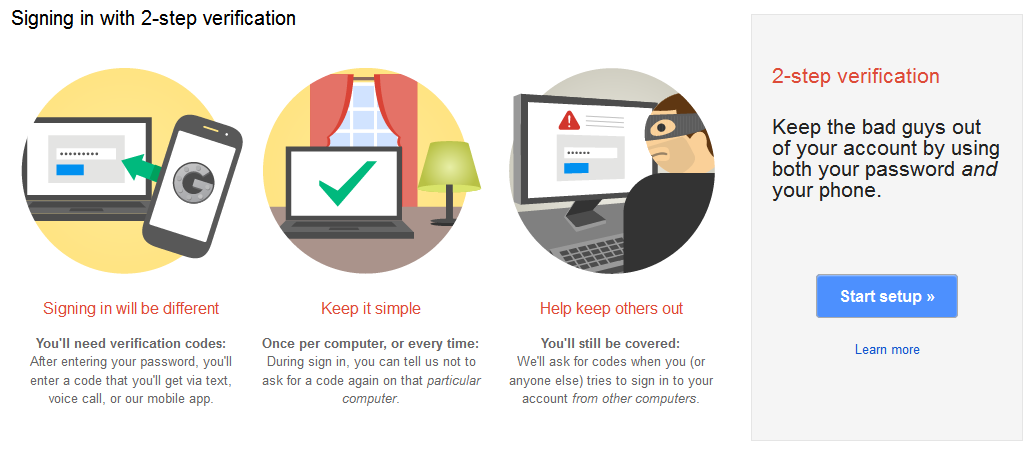
Here, you will get to review several settings that can help make your Gmail account more secure. One of them is about setting up the 2-Step Verification method. This facility prevents unauthorized people from accessing your account, by sending a one-time password to your mobile with every login. If you wish to benefit from this feature, click as shown below.
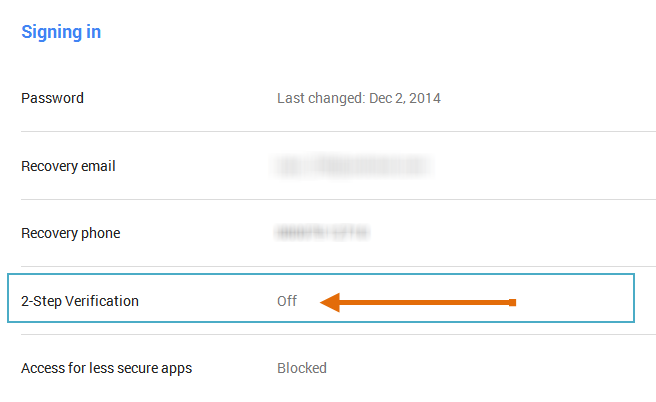
You will be taken to the below page where you can complete the setup.
Besides the above mentioned Gmail Security checklist, there are some more methods that would ensure the security of your account. Learn about these tips in our Gmail Security Checklist post.
If you feel that there are other useful tricks to secure your Google/Gmail account, please do share with us in the comments below. Stay safe!
Content Source:
https://accounts.google.com