





4 Easy Steps to Get Rid of Unwanted Toolbars

Is your Internet browser suddenly riddled with toolbars you have no clue about? Well, this is a common occurrence with almost every Internet user. Here we give you 4 easy steps to get rid of unwanted toolbars from your system.
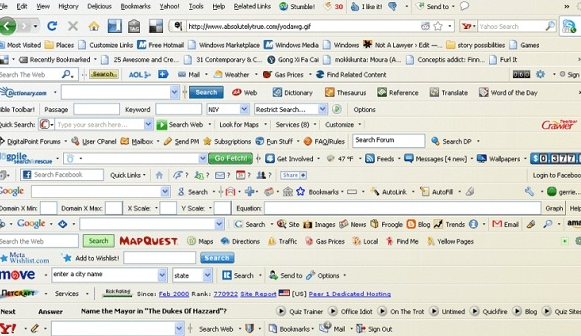
1. Head for the Control Panel
Did you start noticing the unwanted toolbar in your browser after installing a free software from the Internet? If yes, then you need to get rid of the software from the Control Panel section of your computer. Most free software on the Internet, especially those with unverified publishers, come bundled with such toolbars that get installed in the background without user permission. Go to Start and search for Control Panel.
2. Reset your Browser Settings
Some toolbars are downright stubborn and sneaky. You may not be able to track them down from the Control Panel alone. In such cases, resetting your Internet browsers may help. Resetting takes your browser to its default state. Following are the reset steps for different browsers:
- Reset Mozilla Firefox
- Reset Chrome
- Reset Internet Explorer
- Reset Safari
3. Remove Toolbar Extension/Add-on
Sometimes, unwanted toolbars get installed in a browser in the form of an add-on or extension. So, run a check on your browser for an unknown extension/add-on or one with the name of the toolbar. If you are able to find it, remove it and restart your browser. The below links will help you check the same:
4. Delete Browser History and Cookies
Sometimes, even taking all the steps mentioned above cannot get rid of some stubborn toolbars that reinstall themselves with the help of cookies that they leave behind. It is like a creepy ghost that comes back to life by using its remains. So, ensure that you take this measure as your last toolbar cleanup step. Below are links that will help you go about it:
If you know about any other effective ways to remove unwanted toolbars, then do share them with us; we will include your tips in this post.